Viewing a Sent Purchase Order
To view a sent purchase order in Propel Rx:
-
Select More > Inventory > Order Pad.
-
Use one of the following options:
-
Select the Sent option in the Order Pad tab. Highlight an item in the purchase order.
-
Select the P.O.'s tab. Select the supplier from the dropdown. Highlight the sent purchase order.
-
-
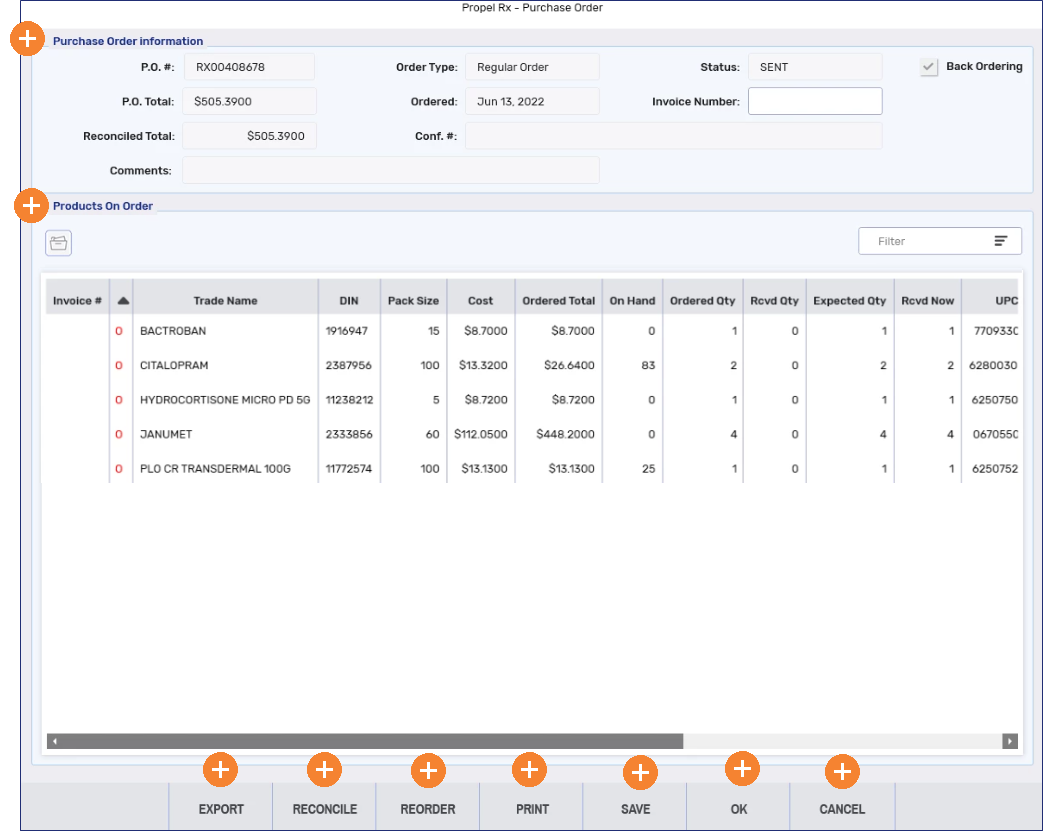
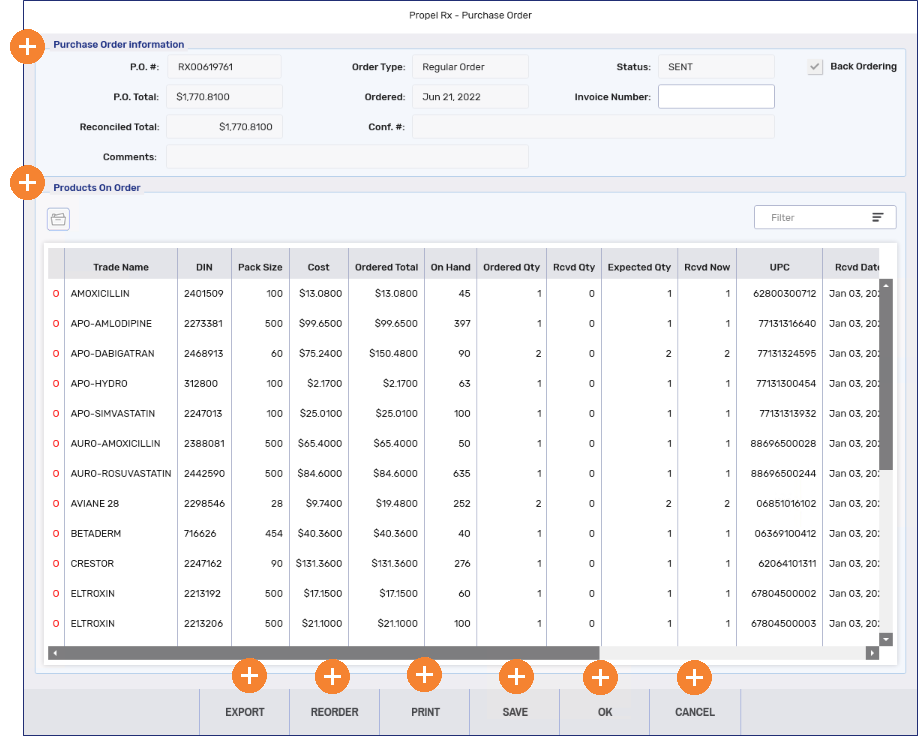
Select Verify PO. The Purchase Order window opens.
For more information on the Purchase Order window, select the expander icons
 in the image below.
If you opened the window from the P.O.'s tab, the Reorder button is not available.